
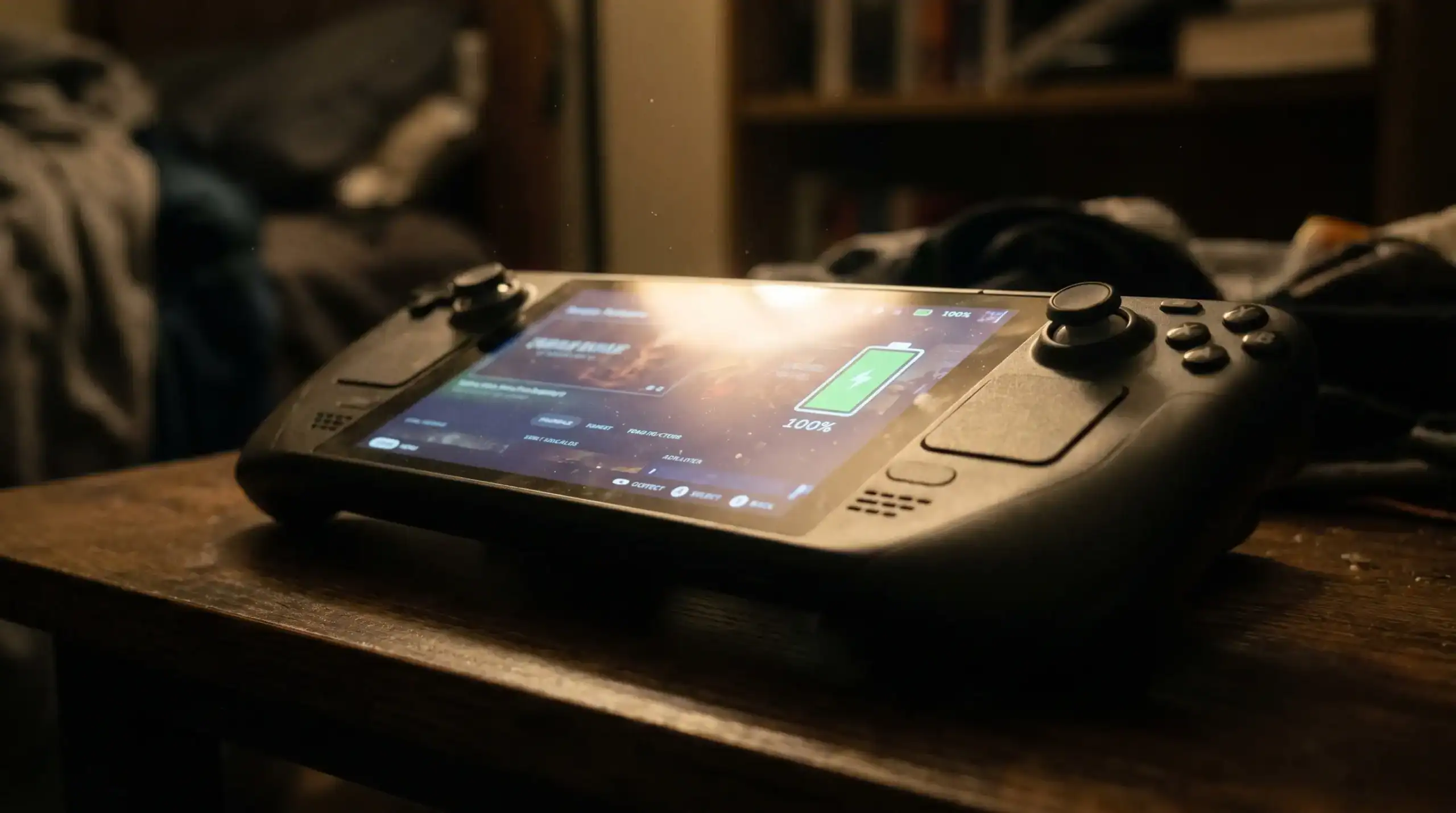
Steam Deck Battery Life Guide
Battery life is one of the Steam Deck’s most talked-about limitations, and one of the most misunderstood. The official “2 to 8 hours” spec is technically accurate and practically useless. What matters is how long your specific games run, and what you can do to push that number higher.
This guide breaks down real-world Steam Deck battery life by game type, compares LCD vs OLED performance, and gives you actionable settings to extend playtime on any model.
Steam Deck Battery Life: Real-World Numbers
The Steam Deck has a 40Wh battery on LCD models and a 50Wh battery on the OLED. Those extra 10 watt-hours translate directly to more playtime, the OLED gets roughly 30 to 40 percent more battery life than the LCD in equivalent conditions, which is a significant upgrade for travel use.
Here is what to realistically expect by game type at default settings:
| Game Type | LCD Battery Life | OLED Battery Life |
|---|---|---|
| Indie / 2D games | 5 to 7 hours | 7 to 9 hours |
| Mid-range PC games | 3 to 4 hours | 4 to 5.5 hours |
| AAA demanding titles | 1.5 to 2.5 hours | 2 to 3.5 hours |
| Emulation (PS2 / GC era) | 4 to 6 hours | 5 to 7 hours |
| Video / streaming | 6 to 8 hours | 8 to 10 hours |
These numbers assume default performance settings, 50 percent screen brightness, and Wi-Fi on. Adjusting those variables moves the needle significantly.
LCD vs OLED: Battery Life Comparison
The Steam Deck OLED does not just benefit from the larger battery. The OLED panel itself is more power-efficient than the LCD at medium and low brightness levels. At 50 percent brightness the OLED draws noticeably less power than the LCD at the same setting. Combine the more efficient panel with the 50Wh battery and the OLED consistently outperforms the LCD by a meaningful margin.
In Elden Ring at medium settings, the LCD typically runs 2 to 2.5 hours. The OLED runs 3 to 3.5 hours in the same conditions. For a trans-Atlantic flight, that difference is the gap between finishing a session and running out of power mid-boss.
If battery life is your primary concern when choosing between models, the OLED is worth the price difference. For the full hardware comparison, see our Steam Deck OLED vs ROG Ally X guide.
Battery Life By Specific Game
The table above covers broad categories, but individual games vary more than an “AAA” or “indie” label suggests. Here’s how some specific, commonly-played titles compare on the OLED model once TDP is tuned to what the game actually needs.
| Game | Typical TDP Setting | Battery Life (OLED) |
|---|---|---|
| Vampire Survivors | 4-6W | 7-9 hours |
| Hades | 7-9W | 5-6 hours |
| Hollow Knight | 6-8W | 6-7 hours |
| Baldur’s Gate 3 | 12-15W | 2.5-3.5 hours |
| Cyberpunk 2077 | 15W (capped) | 1.5-2 hours |
| Stardew Valley | 4-5W | 8-10 hours |
These numbers assume the TDP settings from the section below are already applied. Running any of these games at the Deck’s default uncapped power draw pulls every number down, often by 30 percent or more.
Decky Loader Tools That Help With Battery Life
Two free Decky Loader plugins are worth installing specifically for battery management, on top of the built-in TDP and refresh rate controls covered below.
- PowerTools exposes more granular control than the stock Quick Access Menu, including CPU boost disabling and per-core control, useful for squeezing extra runtime out of CPU-light, GPU-heavy games.
- CryoUtilities tunes the Deck’s swap and memory compression settings. It’s primarily a stutter fix, but a properly-tuned swap configuration also means fewer wasted read and write cycles to storage, which has a small but real effect on sustained power draw during long sessions.
How to Extend Steam Deck Battery Life
These settings have the biggest impact on battery life. Apply them in order, each one builds on the last.
1. Set a TDP Limit
The TDP limit is the most powerful battery tool the Steam Deck has. Open the Quick Access Menu (three-line button) and set the TDP (thermal design power) to a value that matches what your game actually needs. Many 2D and indie games run fine at 6 to 8W. Mid-range games often cap out around 10 to 12W. Only demanding AAA titles actually need the full 15W.
Setting TDP to 8W on a game that runs fine at 8W can extend battery life by 40 to 60 percent compared to letting the Deck run at full power. This single setting has more impact than everything else combined.
2. Cap the Frame Rate and Match the Refresh Rate
In the Quick Access Menu, cap your frame rate to 40fps and drop the display to 40Hz. The Deck does not need to render 60fps to feel smooth, a locked 40fps at 40Hz is very playable and significantly reduces GPU load. For games where 40fps is hard to hit at native resolution, this target is often reachable with minor settings adjustments.
Lower frame caps mean less GPU work per second, which directly reduces power draw. A game that pulls 12W at 60fps often runs at 8W when capped to 40fps.
3. Enable FSR and Drop Render Resolution
FSR (AMD FidelityFX Super Resolution) is available as a system-level setting in the Quick Access Menu. Drop your render resolution to 1024×640 or lower, enable FSR, and let the Deck upscale back to native. GPU load drops significantly since the device is rendering fewer pixels. At handheld viewing distance the quality difference is small in most games.
Combining FSR with a 40fps cap and an 8W TDP limit is the standard power-saving stack for demanding games. It can push a 2-hour session on a demanding title to 3.5 or 4 hours.
4. Lower Screen Brightness
Screen brightness has a larger effect on battery than most players realize. At 100 percent brightness the screen alone draws roughly 2W. At 30 percent brightness, that drops to under 0.5W. For indoor gaming, 30 to 40 percent brightness is plenty. Steam + Volume Up and Steam + Volume Down adjust brightness on the fly without opening any menus.
5. Turn Off Wi-Fi When Not Needed
Wi-Fi draws about 0.5 to 1W continuously when active. For offline single-player sessions, turn it off via Quick Access Menu > Wi-Fi. It saves 20 to 30 minutes of battery over a long session. Not dramatic, but free minutes with no trade-off for offline play.
6. Save Per-Game Power Profiles
Every Quick Access Menu setting saves per game. Tune TDP, frame cap, and resolution for each title once, and those settings load automatically every time you launch that game. You do not need to re-tune every session. Build a power profile for your 10 most-played games and you will always be playing at the most efficient settings without thinking about it.
Best Power Banks for Steam Deck Travel
For long flights, road trips, or any situation where a wall outlet is not available, a USB-C power bank keeps the Deck running. The Steam Deck charges via USB-C PD (Power Delivery) and accepts up to 45W input.
Look for a power bank with at least 20,000mAh capacity and USB-C PD output at 45W or higher. A 20,000mAh bank at 45W will fully recharge the OLED’s 50Wh battery once and partially recharge it again, enough for a full day of travel.
Good options to consider:
- Anker 737 Power Bank (140W, 24,000mAh), Fast charging, can top off the Deck quickly while also charging a laptop.
- Baseus 20,000mAh 65W Power Bank, Compact, excellent value, charges the Deck at full speed.
- Anker PowerCore 26800 PD, Large capacity for extended trips, solid build quality.
Note that charging the Deck while playing at high settings will not maintain battery level, the charger input may not keep up with power draw. Lower TDP settings while charging from a bank for the most efficient top-up during play.
Battery Health Over Time
The Steam Deck’s battery degrades like any lithium-ion cell. Valve designed the Deck with a storage mode, keeping charge between 20 and 80 percent maximizes long-term battery health. If you leave the Deck on a charger constantly, consider enabling the Battery Storage Mode in Settings > Power, which limits charge to 80 percent.
After two to three years of heavy use, battery capacity typically drops to 80 to 85 percent of original. Valve and several third-party repair services offer battery replacement for around $50 to $70 in parts if capacity becomes a problem. The battery is user-replaceable with basic tools.
The Bottom Line
Raw battery life on the Steam Deck ranges from under 2 hours in demanding games to over 8 hours in light titles. The OLED model is meaningfully better in every scenario. Smart use of TDP limits, frame caps, and FSR can double effective playtime in demanding games, turning a 2-hour session into a 4-hour one without sacrificing much.
For more tips on getting the most out of your Deck, see our Steam Deck tips and tricks guide and our breakdown of how to increase Steam Deck FPS for settings that improve both performance and efficiency.
4 Comments